Brayer for iPad
Six modules, one workflow, from the first pencil line to the numbered edition.
You draw the design, split it into colours, print the carving guide at full size, log what happened at the bench, number the impressions, and send them out to an exchange. Design, Separate, Carve Plan, Studio Log, Editions, Exchange. Each one hands its work to the next in a tap, and every one of them starts from the dimensions of the block sitting on your desk.
iPadOS 18 or later · Apple Pencil · one-time purchase · $7.99 at launch
Library
A project is the unit. Everything else hangs off it.
One project holds the drawing, the separations, the carve plan, the sessions, the edition and the exchange it goes into. The library shows you which of those already have something in them.

Library · Hare · 127 × 178 mm, reduction, edition 1/1 · the six module dots show what has content

New project · block first · blank, single block, multi-block, reduction, chine-collé · 150 × 200 mm block, 1772 × 2362 px at 300 dpi
01Design
Design on a canvas the size of your block.
Set the block dimensions when you make the project. The canvas locks to them, with a visible safe area, and the same measurements follow you through the other five modules.
- Canvas
- Locked to the block dimensions you set at project creation, with the safe area drawn in.
- Layers
- 10 at launch, an intentional constraint.
- Brushes
- Pencil, fine pen, broad marker, texture roller, eraser. No custom brush engine at launch.
- Mirror
- A live mirror preview in a second view that updates while you draw.
- Threshold
- Pure black and white at a threshold you set: what will actually carve.
- Registration
- Corner crosses, T-bar and kento notches, added in one tap.
- Handoff
- Open Separate from the toolbar, or send the flattened design to Carve plan.
Contour extraction runs traditional edge detection, no AI. Posterize preview shows the drawing as a number of flat colours before you commit to that many blocks. Grain overlays (wood grain, lino texture, paper tooth) let you design for the material rather than for the screen.
Reference photos float in a pinnable window with adjustable opacity, or sit under the drawing at 30 percent in trace mode. Bring a file in from Procreate as a layered PSD, and send it back the same way. Export PNG, JPG or PDF at native size or at 1:1, or AirPrint the design at exact block size for transfer.
Not in version one, deliberately: no custom brush engine, no animation, no 3D, no typography, no filter stack. Brayer is not trying to replace the drawing app you already like. It is the one you open next.

Design · the canvas is the block · safe area dashed, corner marks at the edge, Open Separate in the toolbar

Design · the View menu · mirror companion, reference, block state, threshold, posterize, contour, symmetry, grain, block boundary, actual size
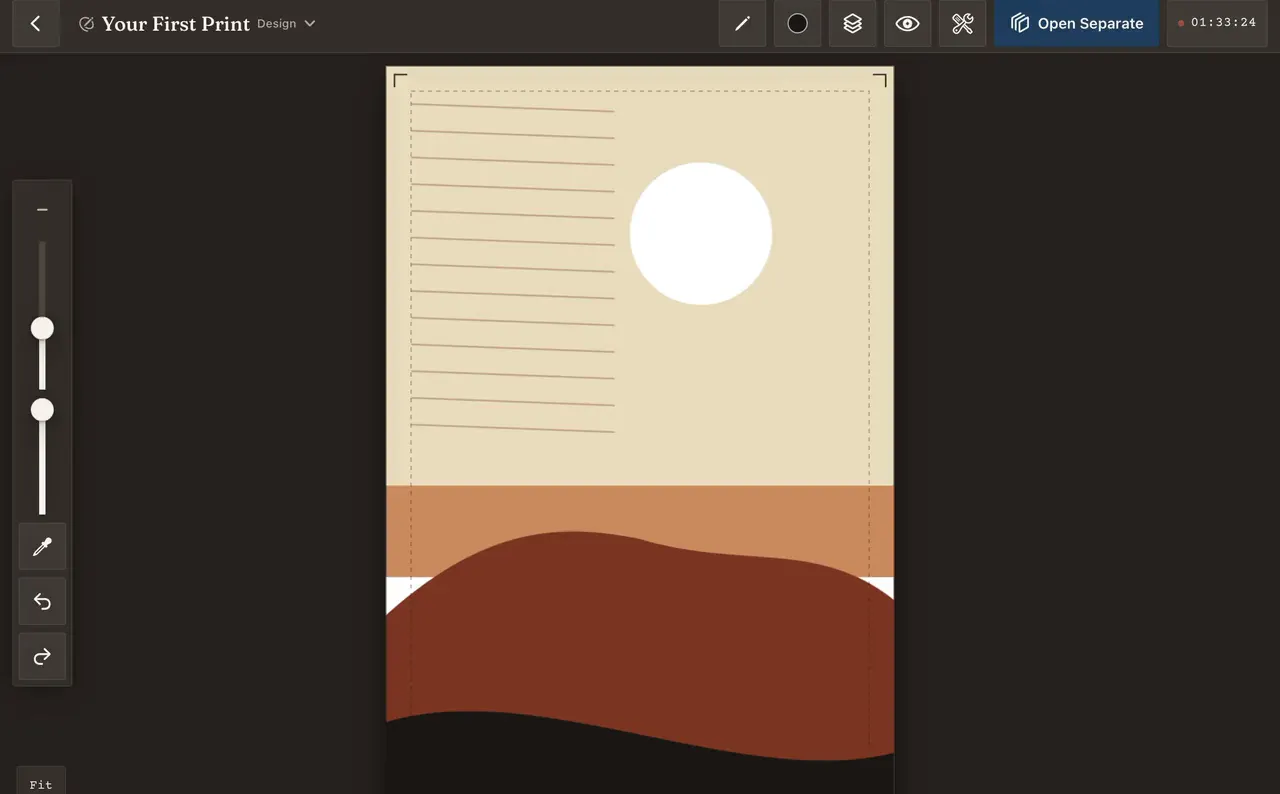
Design · the layers panel and the view menu · four layers of ten
02Separate
Plan the reduction and see the print before you cut the block.
The reduction and multi-block planner. Split a design into colour layers, put them in printing order, and watch the sheet build up one pass at a time.
- Layers
- 2 to 8.
- Method
- Posterize, threshold stack, or manual, painting the separations by hand.
- Palette
- Tap any generated colour to change it, or match it to an ink from your recipe library.
- Sequence
- Drag the passes into the order you will actually print them.
- Simulator
- A stage strip and a scrubber: 01 base, then each pass laid over the last.
- Block state
- The same stages shown as the block itself, mirrored, progressively carved away.
- Handoff
- Send to Carve plan, all layers and marks together.
The print simulator steps through the sheet as it will look after layer one, then one and two, then one, two and three. Scrub back and forth. The block state view does the harder thing: it shows what the physical block looks like at each reduction stage, before you make a cut you cannot undo.
Registration marks are added to every separation automatically and are identical across all of them, which is the entire point. Export the layers as individual PNGs for laser transfer or a projector, or as one multi-page PDF at 1:1.
Not in version one, deliberately: no CMYK simulation, no halftone or screen simulation, no spot colour libraries beyond the ink brands.
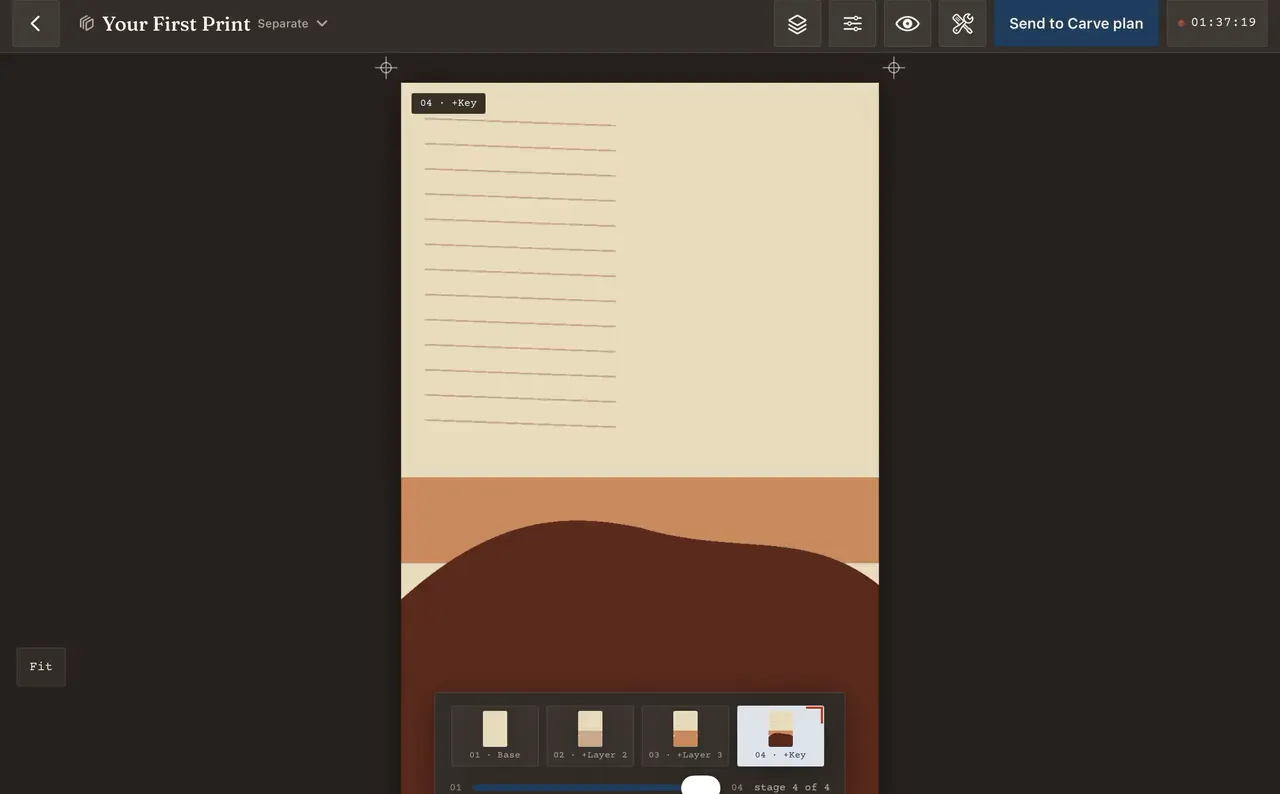
Separate · the print simulator · 01 base, then each pass on top, to stage 4 of 4

Separate · block state at 04 · +KEY, mirrored · what is left standing on the lino
03Carve plan
The carving guide comes off the printer at full size.
The bridge between the iPad and the bench. A guide sheet, the right transfer method, a registration jig, and a printer you have proved is honest about scale.
- Guide
- The design, mirrored, with the share of the block already carved shown as you work.
- Depth
- Deep cut, surface cut and leave. You assign the regions, the guide colour-codes them.
- Registration
- Crosses in all four corners, carried through from Separate unchanged.
- Transfer
- Carbon paper, acetone or wintergreen, iron-on, or direct trace. Mirroring follows the method.
- Gouges
- A suggested gouge per region, drawn from the tools in your Studio inventory.
- Jigs
- Ternes-Burton pin jig, kento notch, T-bar, corner tab. Printable at 1:1 with instructions.
- Export
- Export 1:1 to AirPrint, AirDrop to a Mac for laser output, or save to Files.
Every printer lies a little. The first time you print a guide, Brayer prints a 100 mm test rule instead. You measure it with a real ruler, type in what you got, and the app calibrates that printer for that device. After that, 1:1 means 1:1.

Carve plan · transfer guide, from the design, mirrored, 55% carved · deep cut, leave, surface cut · Export 1:1
04Studio log
Sessions, ink recipes and paper tests, recorded while your hands are still inky.
The module you open most. Sessions, ink recipes, paper tests, and the tools you own, all of it feeding the numbers you will need later.
- Sessions
- Carving, mixing, proofing, editioning, cleanup. One tap to start, a summary on end.
- In session
- A running timer with a photo button, an impression-pulled button and a note button.
- This month
- Sessions, hours at the bench, impressions pulled, and where the time went.
- Ink library
- Recipes with a base type, ratios, modifiers and a swatch, tagged with the papers tested.
- Paper library
- Nineteen papers to start: Awagami Kozo, Bamboo and Hakuho, Rives BFK, Stonehenge, Somerset, Hosho, Masa, newsprint and cartridge.
- Tools
- Gouges, brayers, barens, presses and blocks, with a sharpening tab that tells you what is due.
A recipe records the base inks and their ratios, the modifiers (extender, tack reducer, drier), a swatch photograph, the paper you tested it on and the date. Search it by colour: tap a swatch and find every recipe near it. Or search it by project, when you need the grey you mixed for last year’s series. Duplicate and modify, because that is how mixing actually goes, and share a recipe as a .relief-ink file.
Paper tests log the paper, the ink, the block, a photograph of the result, and notes on absorption, tone and bleed. Two tests sit side by side in a comparison view. Filter down to something as specific as every test with Caligo black on Japanese papers.
The sharpening log nudges you after 30 days of active use, adjustable. The purchase log feeds the pricing calculator in Editions, so what you paid for materials ends up inside what you charge.

Studio · session in progress at 01:24:22 · 3 pulled, 0 photos · 2 sessions and 3.4 h this month

Studio · ink library · Persimmon, 2:1 Napthol Red and Burnt Umber, oil, 10% extender, tested twice
05Editions
Every impression is its own record.
Edition tracking for printmakers: not a row in a spreadsheet called Sales, but a record with a number, a state, a paper, the recipes it was printed with, and a location that changes as the print moves. Plus a pricing calculator and certificates of authenticity.
- Numbering
- The edition plus AP, PP, TP and HC, and the BAT, numbered by printmaking convention.
- Impression
- Number, state, date pulled, paper, ink recipes used, quality grade, photograph, notes and price.
- Location
- In studio, framed, with gallery, shipped, sold, gifted, destroyed, lost.
- Pricing
- Materials, hours worked and hourly rate, reputation tier, sales channel commission, target margin.
- Buyers
- Name, email, sale date, price and channel, stored encrypted.
- COA
- Generate all COAs for the edition. Each carries a unique QR to a public verification page.
- Export
- Export CSV for taxes and gallery submissions, alongside sales and inventory reports.
The pricing calculator takes materials from the Studio log, hours from your sessions, the edition size, the reputation tier and the commission on the channel you are selling through, then shows the suggested price with the whole breakdown visible. Save it as the project default.
A home-screen widget logs a sale in three taps, for the ones that happen in a direct message.
When an edition is marked complete the size can no longer shrink, no impressions can be added past the committed size, and the BAT is frozen. The software behaves the way a signed edition does.
Not in version one, deliberately: no payment processing inside Editions, no gallery CRM beyond consignment, no tax form generation.

Editions · Hare · edition of 1 + 1 AP · the AP in studio, the numbered impression gifted
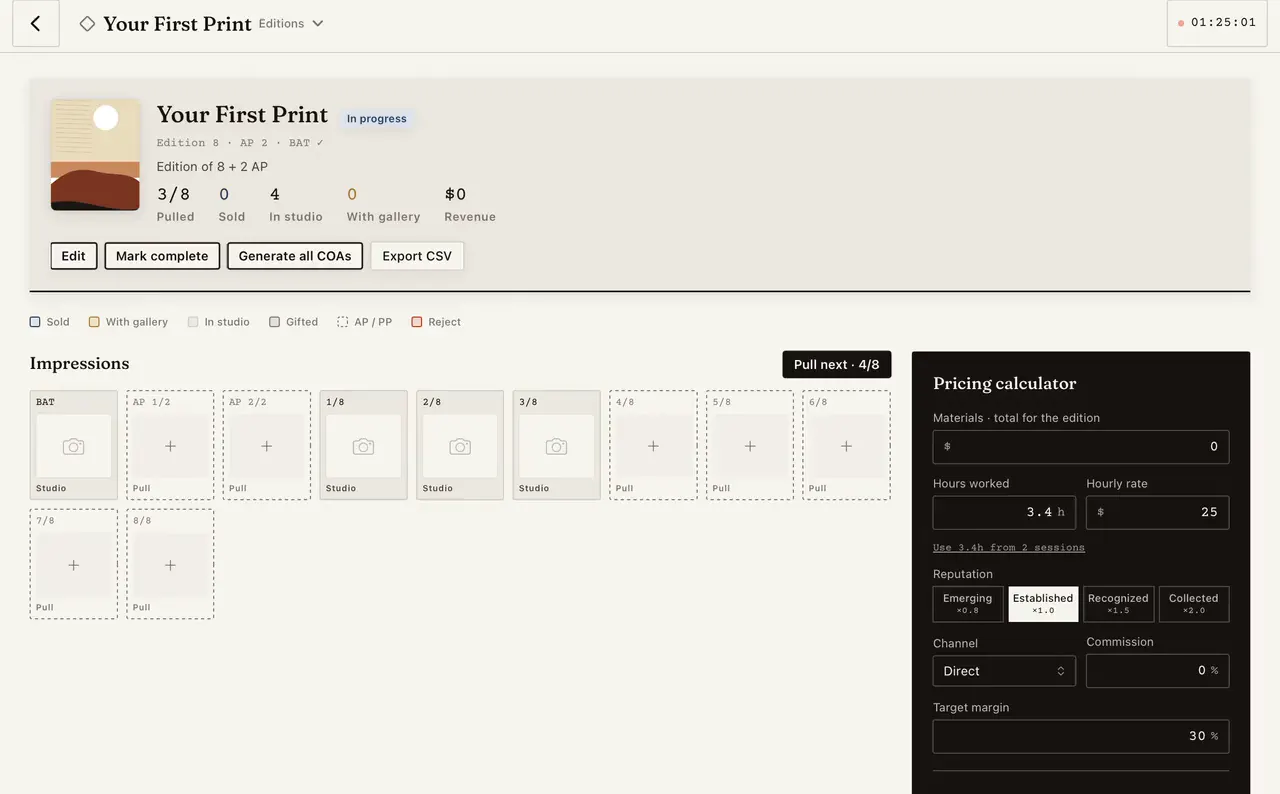
Editions · Pull next · the impression takes the number, the state and the date
06Exchange
Run the print exchange from the app that already knows the edition.
Organizing happens in the app. Taking part happens on the web, free, with no app at all. The two halves are the same exchange.
- Types
- Portfolio swap, mail art, themed, class, other. Public or invite only.
- Specification
- The address to send to, image and sheet dimensions, paper, ink, edition per participant, both deadlines and the fee.
- Invitations
- A six-character join code with a QR and a share link. Import a class roster from CSV.
- Roster
- Names, emails and mailing addresses, with paid, sent and received marked against each one.
- Fees
- Collected and outstanding, totalled at the head of the exchange.
- Submissions
- Pending, sent, received, complete, tracked per participant with the photograph they sent.
- Labels
- Avery 5160 on US Letter or L7160 on A4: 3 × 10 to a sheet at 66.7 × 25.4 mm, printed at 100%.
- Colophon
- A print-ready PDF: cover, dedication, index, and a page for each artist and print.
Editions and Exchange are wired together. The impressions you send are marked gifted via exchange in your own edition record. The prints you receive log themselves into your inventory. The exchange stays in the archive and is still searchable years later, when someone asks who made the persimmon one.
Participation fees route through Stripe rather than the App Store, because prints are physical goods.

Exchange · Small worlds, 2026 · join code CR57BG · 9/12 on the roster, 6 paid, 9 with an address
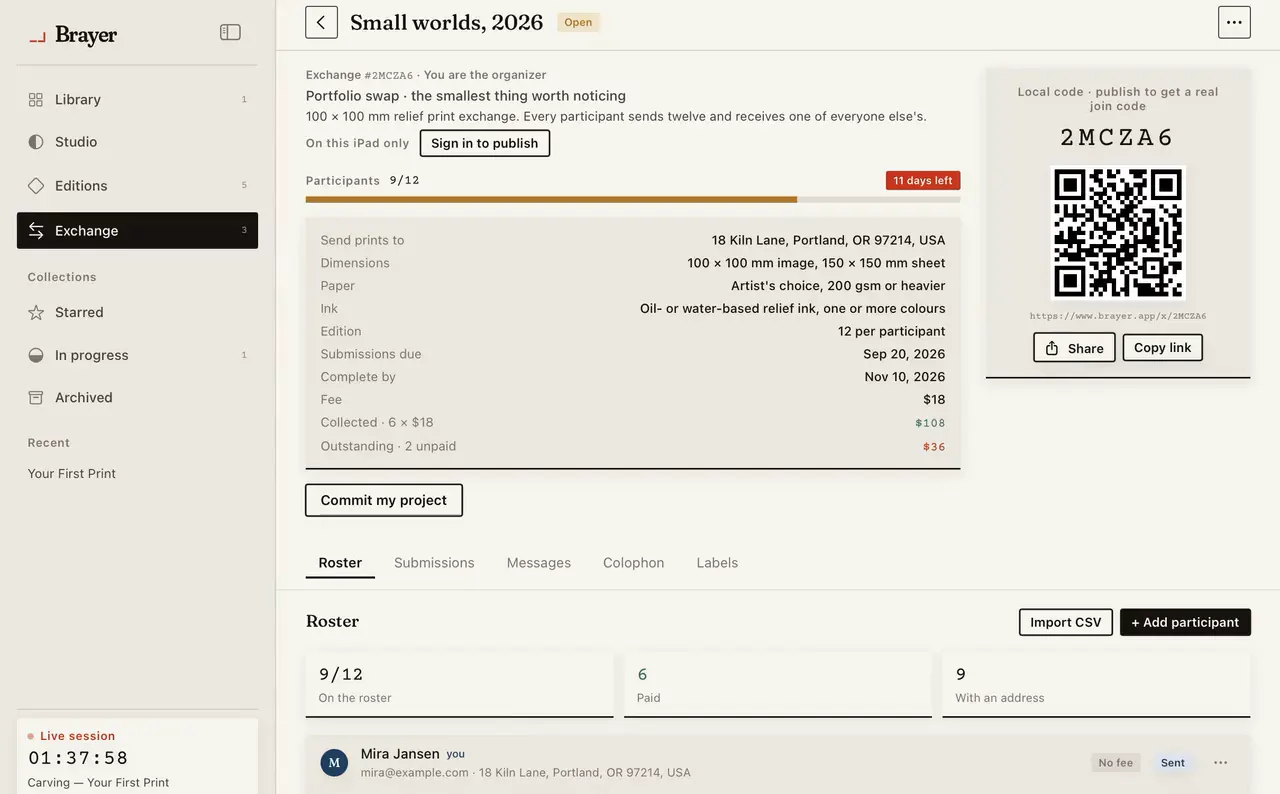
Exchange · roster, submissions, messages, colophon, labels
Price
$7.99 at launch, $9.99 after six months. Every module included.
One purchase. No paywalls inside the workflow, no subscription to carve a block. Your archive stays on your iPad and leaves in a .relief bundle whenever you want it to.
Coming to the App Store. Leave an email and hear once, at launch.
The full price breakdown, including the optional Studio+ subscription and what it never gates, is on the pricing page.